


























































SSD
What Is an SSD? Best Internal SSD in Dubai for Laptops and PCs – 2026 Buying Guide
Oct
Computers are used for almost everything today, from office work and online learning to gaming, video editing and business operations. However, even a powerful computer can feel slow if it uses outdated storage technology. Long startup times, delayed file transfers and slow application loading can affect everyday productivity. One effective way to improve computer performance is by upgrading to a Solid-State Drive (SSD).
If you are looking for an Internal SSD in Dubai, it is important to understand how SSDs work, which types are available and what storage capacity you actually need. Different SSDs are designed for different requirements, so choosing the right one can help you get better performance and reliable storage. In this guide, we will explain SSD technology, compare different options and help you understand what to consider before buying an SSD in the UAE.
What Is an SSD (Solid State Drive)?
An SSD, or Solid-State Drive, is a digital storage device that saves information using flash memory. It is used in laptops, desktop computers and other electronic devices to store operating systems, applications, documents, photographs, videos and other files.
Unlike traditional Hard Disk Drives (HDDs), SSDs do not depend on spinning disks or moving mechanical components. Instead, they use electronic memory chips to store and access information. This allows an SSD to retrieve data quickly and helps a computer perform everyday tasks more smoothly.
For example, when you turn on a computer with an SSD, the operating system can load faster because the drive can access the required files without waiting for mechanical parts to move. Similarly, applications, documents and other stored files can open more quickly.
How Does an SSD Work?
An SSD works by storing information in NAND flash memory cells. When you save a document, install software or download a video, the SSD records that information electronically.
An important component inside the drive is the SSD controller. It manages how information is stored, accessed and moved between memory cells. When you request a file, the controller locates the stored data and sends it to the computer.
This electronic process makes SSDs faster at accessing information than traditional mechanical hard drives. It also allows them to operate without the noise and vibrations associated with spinning disks.
What Is SSD Storage Used For?
SSDs are used for storing operating systems, software, personal documents, business information, photographs and multimedia files. They are also commonly used in gaming computers because faster storage can reduce game loading times.
For businesses, SSDs can help improve the responsiveness of office computers and workstations. Employees can access files, open applications and switch between tasks more efficiently, supporting a smoother working environment.
SSD vs HDD: What Is the Difference?
SSDs and HDDs perform the same basic function: storing digital information. However, their storage technologies are different. An HDD uses rotating magnetic discs and a moving read/write head to access information, while an SSD uses flash memory with no moving mechanical parts.
This difference affects their speed, noise levels, power consumption and durability. SSDs are generally preferred for modern computers where quick access to files and applications is important. HDDs can still be useful when users need large storage capacity at a lower cost.

| Feature | SSD | HDD |
| Technology | Flash memory | Magnetic disks |
| Speed | Faster data access | Comparatively slower |
| Noise | Silent operation | May produce noise |
| Moving Parts | No | Yes |
| Power Usage | Generally lower | Generally higher |
| Cost | Higher per GB | Usually lower per GB |
SSD vs HDD Speed and Performance
An SSD can access stored information much faster than a traditional HDD. This can reduce computer startup times, improve application loading and make file transfers quicker, depending on the drive and system configuration.
An HDD may take longer to access information because its mechanical parts need to move into position. For users who regularly work with multiple applications or large files, an SSD can provide a noticeable improvement in everyday computer responsiveness.
Which Is Better for Everyday Computing?
For everyday computing, an SSD is generally a better option when performance is the main priority. It is suitable for office work, browsing, online meetings, software usage and gaming.
An HDD may still be useful for storing large collections of photographs, videos and backup files. The right choice depends on your storage requirements, computer compatibility and budget.
What Are the Different Types of SSDs?
SSDs are available in different formats and technologies. Before purchasing one, it is important to understand how they connect to a computer and whether your device supports the selected drive.

Lorem ipsum dolor sit amet...
Lorem ipsum dolor sit amet, consectetuer adipiscing elit, sed diam nonummy nibh euismod tincidunt ut laoreet dolore magna aliquam erat volutpat.
SATA SSD
A SATA SSD uses the Serial ATA interface to connect with a computer. It is commonly found in older laptops and desktop systems and is often selected as an upgrade from a traditional HDD.
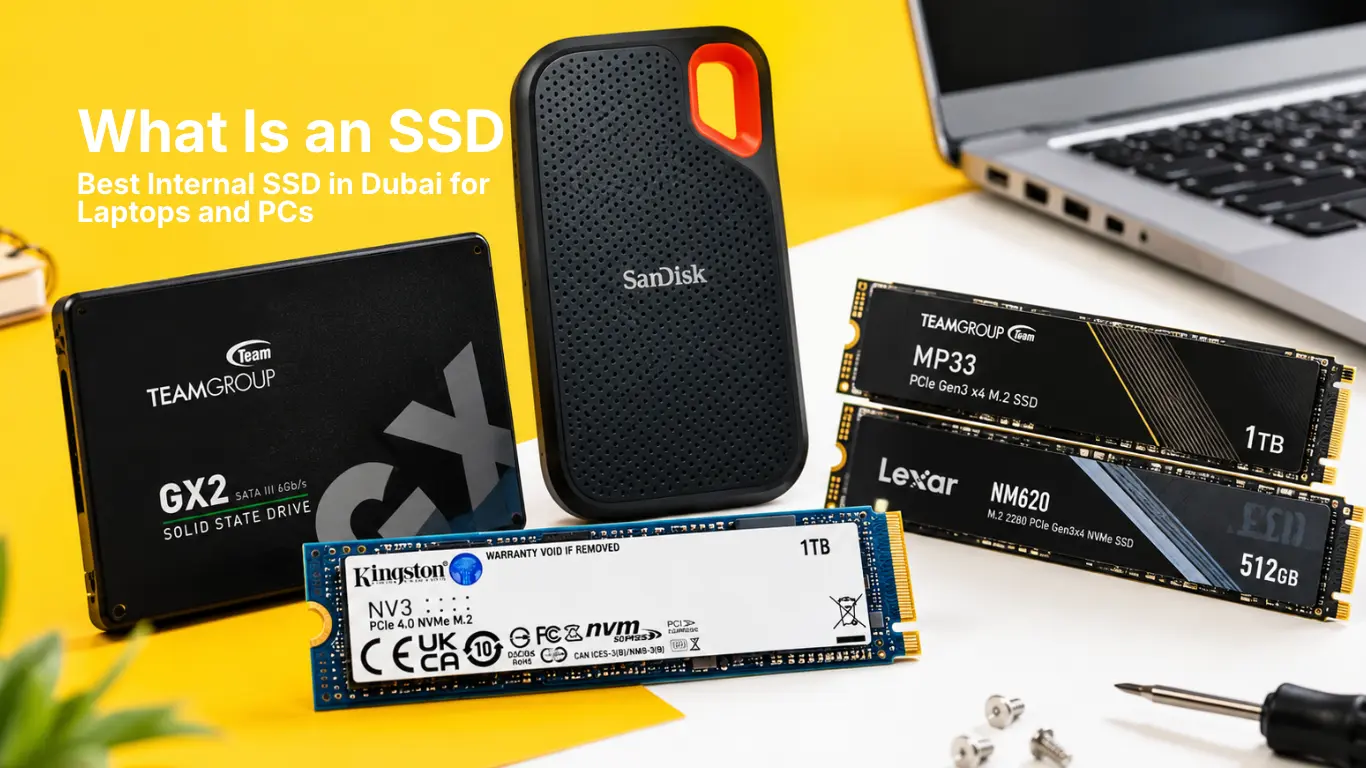
The TeamGroup GX2 256GB SATA SSD is one option for users looking for SATA-based storage. It may be suitable for compatible computers used for regular office tasks, browsing and everyday applications.
NVMe SSD
NVMe SSDs use the PCIe interface to communicate with a computer. They are designed to support faster data transfers than traditional SATA SSDs and are commonly used in modern laptops and desktop systems.
They can be useful for users who work with demanding applications, large files and multitasking. However, the computer must support the required NVMe interface to use the drive correctly.
PCIe SSD
PCIe is a high-speed connection technology used by many modern SSDs. It provides a communication pathway between the storage drive and the computer’s motherboard.
Different PCIe generations offer different bandwidth levels. The actual performance depends on the SSD model, supported generation and the computer’s hardware.
M.2 SSD
M.2 is a compact physical form factor commonly used in modern laptops and desktop computers. It allows storage drives to fit into a smaller space than traditional 2.5-inch drives.
It is important to understand that M.2 refers to the physical format, not necessarily the storage technology. M.2 drives can support SATA or NVMe, so users should check their motherboard specifications before purchasing one.
What Is an Internal SSD?
An internal SSD is a storage device installed inside a laptop or desktop computer. It connects directly to the motherboard and stores the operating system, software, applications and personal files.
Many users choose an internal SSD when their existing computer has become slow or needs additional storage. Replacing a compatible HDD with an SSD can improve system responsiveness without requiring a complete computer replacement.
When searching for an Internal SSD in Dubai, consider the drive’s physical size, interface, storage capacity and compatibility with your computer.
Internal SSD vs External SSD
An internal SSD is installed inside the computer and is generally used for permanent system storage. An external SSD connects through a supported port, usually USB, and can be carried between different devices.
For example, an internal SSD is suitable for installing Windows and applications, while an external SSD is useful for transferring large files, keeping backups and accessing information from multiple computers.
Common Internal SSD Form Factors
2.5-Inch SSD
A 2.5-inch SSD is commonly used in laptops and desktop computers that support SATA storage. It is a practical option for upgrading compatible older systems.
M.2 2280 SSD
An M.2 2280 SSD measures 22mm in width and 80mm in length. This compact design is commonly used in modern laptops and desktops. Before buying one, check whether your motherboard supports the required M.2 interface.
What Are the Benefits of Using an SSD?
SSDs offer several advantages for home users, professionals and businesses. Their faster data access can improve the everyday computing experience and help users complete tasks more efficiently.
Faster Boot and Loading Times
One of the main advantages of an SSD is faster access to stored information. Your computer can start more quickly, and applications may take less time to open. This is especially useful for people who regularly use their computers throughout the working day.
Better Energy Efficiency
SSDs generally consume less power than traditional HDDs because they do not need to operate spinning disks. This can be beneficial for laptop users who want to manage battery consumption more efficiently.
Silent Operation and Durability
Since SSDs have no moving mechanical components, they operate silently. Their design also makes them less vulnerable to certain types of physical shock compared with traditional HDDs. However, proper handling and regular backups are still important.
Improved Multitasking and Productivity
Faster storage access can help computers handle everyday activities more smoothly. Users can open applications, access documents and switch between tasks with fewer storage-related delays.
What Are the Different SSD Storage Capacities?
Choosing the right SSD capacity depends on the type of work you perform and how much information you need to store. A small capacity may be sufficient for basic computing, while professionals and gamers may need more storage space.
256GB SSD for Basic Computing
A 256GB SSD can be suitable for users who mainly browse the internet, work with documents and use basic applications. It is also an option for computers that do not require large amounts of local storage.
1TB SSD for Gaming and Professional Work
A 1TB SSD is useful for people who install larger applications, manage business files or work with creative software. It also provides more room for games and multimedia content.
2TB SSD for Large Files and Backups
A 2TB SSD offers additional storage for large photographs, videos, project files and backups. It can be useful for professionals who regularly manage large amounts of digital information.
Best Internal SSD Options Available in Dubai
Choosing an SSD becomes easier when you understand your storage requirements and compare available products. Cost To Cost Trading Co. LLC offers several SSD options from the brands and product ranges listed below.
Kingston NV3 1TB NVMe SSD
The Kingston NV3 1TB SSD is an internal NVMe storage option for users who need 1TB capacity. It is worth considering for compatible laptops and desktop computers where additional storage and faster data access are required.
TeamGroup MP33 1TB, 512GB and 256GB SSD
The TeamGroup MP33 range includes multiple storage capacities, allowing users to compare options according to their requirements. The 1TB version provides more storage space, while the 512GB and 256GB versions can suit users with different storage needs.
Explore the available options:
TeamGroup GX2 256GB SATA SSD
The TeamGroup GX2 256GB SATA SSD is an option for users looking for a SATA-based internal storage drive. It can be considered for compatible systems used for everyday computing and basic applications.
Lexar NM620 512GB NVMe SSD
The Lexar NM620 512GB NVMe SSD is another internal storage option for users considering M.2 NVMe technology. Its 512GB capacity can provide space for operating systems, applications and personal files.
Best Portable SSD Options for External Storage
Not every storage requirement needs an internal drive. Portable SSDs are useful when you need to move information between devices or keep important files separately from your computer.
SanDisk Extreme Portable SSD 2TB
The SanDisk Extreme Portable SSD 2TB offers 2TB of external storage. It can be considered by users who work with large files, photographs and videos and need a portable storage option.
SanDisk Professional 1TB G-Drive SSD
The SanDisk Professional 1TB G-Drive SSD is another external storage option to explore. It may be useful for professionals who need additional space for managing and transferring important files.
How to Choose the Right Internal SSD in Dubai?
Buying an SSD is not just about selecting the highest storage capacity. You should consider how the drive will be used and whether it is compatible with your computer.
Check Your Laptop or Desktop Compatibility
First, check your device’s motherboard or manufacturer specifications. Confirm whether it supports a SATA drive, M.2 SATA or M.2 NVMe SSD. Also check the physical dimensions and available storage slots.
Compare SSD Speed and Interface
Different SSD interfaces provide different performance levels. NVMe drives generally offer higher transfer speeds than SATA drives, but your computer must support the required technology.
Select the Right Storage Capacity
Think about how much space you need for applications, games, business documents and personal files. Choosing a suitable capacity can help you avoid running out of storage too quickly.
Consider Warranty and Budget
Before purchasing, compare product specifications, warranty details and available prices. A suitable SSD should meet your performance requirements while staying within your budget.
Where to Buy Internal SSDs in Dubai, UAE?
Finding a suitable SSD requires comparing storage capacity, interface, compatibility and intended usage. Whether you are upgrading an older laptop or selecting storage for a new desktop computer, understanding these factors can help you make a better decision.
Cost To Cost Trading Co. LLC offers different SSD storage options for users looking for internal and portable drives in Dubai, UAE. You can explore the available products, compare their specifications and choose an option that matches your computer requirements.
Visit the SSD collection at Cost To Cost in Dubai to explore available storage options for your laptop or desktop computer.
Frequently Asked Questions About SSDs
Lorem ipsum dolor sit amet, consectetuer adipiscing elit, sed diam nonummy nibh euismod tincidunt ut laoreet dolore magna aliquam erat volutpat.
An SSD is generally better when speed, silent operation and resistance to physical shock are important. An HDD can still be useful for storing large amounts of data at a lower cost per gigabyte.
The best internal SSD depends on your laptop’s compatibility, available storage slot, required capacity and budget. Check whether your device supports SATA or NVMe before selecting a drive.
SATA SSDs use the SATA interface, while NVMe SSDs communicate through PCIe technology. NVMe drives generally provide faster data transfer speeds on compatible computers.
An SSD’s lifespan depends on its quality, write endurance, usage and operating conditions. Following proper usage practices and keeping regular backups can help protect your important information.
Many laptops support internal SSD upgrades, but compatibility varies by model. Check the available storage slot, interface and physical size before purchasing a replacement or additional drive.